Showing posts with label how to. Show all posts

Sunday, February 8, 2009

Savegame Deemer Troubleshooting 3

sgdeemer eraser
In order to use our patches to modify your save data, you have to install the plugin sg deemer. We always repeat this concept(sorry for who continuously reads the same thing)!
But deemer sometimes has strange behavior and you have to act manually to recover the right situation.
Now, we treat the cases you want to recover your data...
Of course, you can delete the sddata.bin into saveplain folder, and it will be created again every time you make, in game, a save.
The eventual one present will be overwritten.

Imagine the situation where you patched the sddata.bin of a game, you load the game with the patched data and you are not satisfied and want to return back to the old save data.
So, DON'T SAVE, just quit the game, connect the psp through usb and delete the sddata.bin. As explained above, it will be created again without the patching and cheat stuff.
You can patch it again.

Instead, if it seems the psp doesn't load the patched data but the default one, it happens because the data are in the wrong folder. Read the second tutorial about savegame deemer to overcome this trouble.

Happy psp save editing!

Thursday, January 29, 2009

How to config & report savegame editor settings & errors

This tutorial explain how to configure connection settings in the new savegame editors for playstation portable. They work online and patch your psp save game data.
Also you can see how to report us any errors occurred while you're patching your psp savegame.

Option use:
Click on thumbnails to magnify the images

Savegame editor connection settings Click on menu "Option" and after on "Connection settings".This panel will appear.

You can choose which connection type you use. If you are directly (most cases) connected to the internet, leave the settings as you find them.
Else, if you use a proxy, you have to specify the appropriate settings.

Try to "Check", and if you encounter a trouble, contact us as you can see in the next section "Report".
Savegame editor report errors If your load or patch process doesn't succeed, you may report us your throuble!

Click on "Option" menu and after on "View log information". A panel in the bottom will appear.
It shoes some informations performing on your psp save.

Click on the "Copy" button. A message will say you that all log info are copied into clipboard and you have to send us an email with that pasted data.

Therefore, feedback us and will be able to resolve all your problems!


The art of create a savegame editor is quite complex, the art of use it and patch your playstation portable saves is quite simple!

Your psp is all you need to play your games, but ...
...if want to enjoy better the games patch them!

Friday, January 23, 2009

Savegame Deemer Troubleshooting 2

Posting "The Fast and the Furoius" trick for playstation portable we have to say some other word about deemer.
With this game the sg deemer works in a strange way.
A brief summary.

Deemer saving process consits in creating a folder that contains all the game data (at the moment of the save process).
The folder created by deemer is different from the original one created by PSP to storage the gamedata.

The deemer's folder is here: MEMORYSTICK:\PSP\SAVEPLAIN
The psp's original folder is here: MEMORYSTICK:\PSP\SAVEDATA

Well, to have a full working patch you have to be sure that the deemer's folder has the name of the psp's original folder.

In the case of "The Fast and the Furious", deemer creates (every time that you save the game) a new folder with new data, but when you load the game it will load only data located in the first folder created!

In order to overcome the problem:
  1. use the patch on the last sddata.bin
  2. save or move that savegame to the right folder into psp
  3. turn off the deemer

Your life will become happy again and your game console right uses saves!

Wednesday, January 21, 2009

New patch and savegame editor use and infos

A patchator let you hack the savegame of your psp and so you can apply many cheat.
It can not expand the game, ie adding new features. It can simply trick the psp game (its saves), and unlock items, modify values and so on...

As we wrote about the new functionalities of patchators and savegame editors for your playstation portable, it's time to explain you how they will work
Every new patchator or editor require the same things of the previous ones plus an active internet connection, so read general patchators informations and requirements for help and further informations.

Generally, when you will open a savegame editor, you will see the same things of the previous one, but really the application core is totally changed. The application connects through internet and refreshes its contents and version.
If your connection is not direct (it uses proxy) or an error occurs while you are patching, read the next tutorial.

Main use:
Click on thumbnails to magnify the images

Patch check The first tab allows you to perform check-in of the patch. After you press the "Check" button, the program will connect and download information and updates of the relative psp game.

Make sure the connection is active and wait about five/thirty seconds.
Patch check ok An useful downloaded information is the version notes, so read accurately because they inform you about the psp patch features such as beta troubles, bad behaviors and so on...

If all has gone ok, the tab "Load & Save" will appear!
Patch Load and Save Now, you can load your playstation portable savegame.

Browse for the sddata.bin file, or other else but however created by savegame deemer.
If you don't know read Prelude of psp patching.

Click on "Load" button.
The program loads your current values according to the current patch version and create parameter constraints (that is max-hp=99, min-item=1, ...)

After the load process is completed successfully, the "Patch" panel becomes active.
Pspatchator patch Well done!
You are ready to patch the savegame of your psp game!

Change the values or whatever the program shows you as your needs.

Read section descriptions (if appear) in the section title bars. If a description is too long, you can read it entirely by click into end go right with the arrow keys.

Press "Patch" button when your changes are completed, and...
...now you have a patched playstation savegame!

Other options
In the next tutorial, we will explain you how to set the program if you use not directly connected and how to report us errors and wrong behaviors in order to quicly fix them for your next uses.

Remarks
Every explained step requires an active internet connection. So be sure that you connection works correctly.

Thursday, January 15, 2009

Savegame Deemer Troubleshooting

Something to say about the deemer.
Next patches will underline some problems often caused by this plugin.

Let's start from the "start".

Every psp game has an ID number that is unique for each game. It is a code that gives an identity to the game, so, for instance, it is used to make difference between two region versions of the same game.
In this case, two games have the same title, but different ID numbers.
I hope it's clear.

When you create a savegame (the normal way, without the savegame deemer), your psp creates a folder containing your data.
It's important to understand this: this name is composed of two numbers, the first is the ID number, the second is the savegame number.
Example: UCET00844DATA00. This is God of War savegame folder name.
UCET00844 is the ID number.
DATA00 is the savegame number.
When you make a savegame (having installed the plugin on your psp), sgdeemer creates another folder in /psp/saveplain that contains the data we use with our patches (the savegame file is sddata.bin).
This folder has a name too.
It's the same structure of the other folder (the one created by psp):
IDnumber and savegame number, for example, UCES00995_DATA00. This is Patapon's savegame folder name (created by deemer).
UCES00995: the ID number;
_DATA00: savegame data number.

Sometimes deemer works wrong and save the game into incorrect folder. So, it can occur that when you load you savegame by deemer, it don't find the save file and don't load it.

When deemer creates the savagame it gives a little bit different name to its folder. The difference consists in changing the SAVEGAME NUMBER.
To understand better look this example with God of war savegame:
while the folder created by your psp will be UCET00844DATA00
the folder created by the deemer will have this name UCET00844_DATA00 or UCET00844DATA01 or UCET00844DATA1 or who knows what?
In this case even if you customize your savegame with the patches the game will not load the changes.

WHAT TO DO?
Modify the folder name CREATED BY DEEMER in order to obtain the same name of the created by PSP folder.
In this way the game will load the data correctly.
Later, when you save your game, deemer will create its folder with the wrong name again...but now that folder contains your right going on in the game! Therefore you have two folders with two sddata.bin: the old one with the corrected name and the new one, just created, with wrong name and the last save. Now if you load the game you will restart from the first savegame not by the second, BECAUSE PSP LOADS ONLY DATA CONTAINED IN THE FOLDER WITH THE CORRECT NAME!!

WHAT TO DO?
So, once you have patched your save (or your last save) with the savegame editor, you have to copy it in the correct folder name, load it then save the game and quit. Now data are in your official savegame so you can go on without deemer. Go in recovery mode, turn off the deemer. Start the game and load your savegame.

enjoy :)

For every question, disturb or disorder.. ask.

Wednesday, December 24, 2008

How to use our savegames

This tutorial is for dummies, so the expert do not criticize while reading the follows lines.
Now we explain how to replace in your psp the original savegame with a patched one. A psp save game consists in few files. Ours are modified with some trick and cheat!

It's very easy.
  1. Connect through USB the psp to your pc
  2. Go inside the psp memory and open the folder "psp\savedata"
  3. You will see several folder. Each one represents a savegame. You can recognize the game by opening the folder and view the image named "icon0.png". It is the image of the game.
  4. If you have more save of the same game, the folder names may be increase their number one by one.
  5. Chose your target savegame folder and paste inside (and overwrite) the new files of the patched save game.
Now you can play your psp game with all trick that you want or need!

Friday, December 5, 2008

General patch informations and requirements

Every patchator for your psp save game, let you manage simply your save data by a GUI(graphical user interface). So a patch is a common window program that allows you to modify values and, in general, to apply some tricks.

We remind you that to access to savegame you need the plugin sgdeemer installed, read prelude to psp patching for more and how sgdeemer works.

Requirements
For now, a patch run only on a platform with the .Net Framework 2.0 (or higher).
  1. For windows;
    Windows XP with Sp2 (and higher), Vista, Windows Server 2003 have that component installed yet. If you have a recent version, you can download it for free from the Microsoft website.
  2. Linux and Mac;
    for Linux distributions and Mac there is a framework called "Mono" that permits to run .net framework programs.
In the near future, we'll make the patch process available on line: a web page with a form where you can submit your save file and download it patched with all specified tricks.

Help & informations
Now it's time to show you some screenshots of a patch and how to use it.

patch midnight la remix
This is the main window, you can
  1. load your save game;
  2. choose to overwrite or save the patched file anywhere;
    [NOTE] If you don't overwrite, set "sddata.bin" as the new file name in your favorite path.
After you can press the button "Load", your file is ready to be patched. It'll appear a new tab called "Patching" where the current values of the file are loaded.

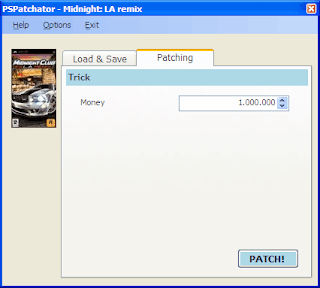
trick midnight la remix
This is the patch tab, you can modify current values of available tricks. Once you have set the wanted values, click on PATCH! and the programs write the data for you!

Every patch is developed initially with the most important tricks to enjoy the game (if we found them). But further tricks, can be added in future releases. So, check the patch version and its capabilities, and visit the blog for recent updates.

Requests
If you want a special trick or cheat, not available in a released patch yet, you can contact and tell us your needs.
If you want a patch for a game that we have not analyzed or announced, contact us with the game name, and we'll do our best to make a patch for it.

Errors
The patch is released in the shortest time possible, and maybe contains bugs or mistakes. If you want to contribute by report as any errors and any bad behaviors. The menu item "Option\View log informations" will show you some details of the patch process. Send us the error messages if they compare.
We are very glad of your help.

Wednesday, December 3, 2008

Deemer: How it works

Once you activate the plugin, this will make an additional copy of your save file.
If you haven't installed or activated it yet, read the previous post.

You can find the copy in the folder named "saveplain" placed in your psp. This folder has been created by sgdeemer, DON'T delete it!!
The copy of the save file you obtain is perfectly identical to the original but is written in a format that lets our patch to work for you : ).
Once you have modified this save file with the patch, psp system will load it and the game will start with the wished changes(with tricks and cheats).

If you're tired to play with the modified save file you can load the original one (created by your console) simply: disable sgdeemer in recovery menu or delete the patched file (in this case remember to make a backup copy to your pc in order to avoid loss of the precious skilling).

That's all.

How to install the plugin SaveGame deemer

Download the Savegame deemer plugin. When the download ends, you will have an archive. Estract the content of the archive to a position of your pc. You will find the following things:
  1. Seplugin (folder);
  2. Readme (text file that says the same things I will, but in a little bit incomprehensible form ; )
Maybe you will find another text file that explains differences between the versions of the plugin.
Well.

First path:
For those who have already installed other plugins in their own PlayStation Portable.
If you don't know, follow these steps to check.
  1. Connect the psp to the computer;
  2. Go to My Computer;
  3. Go to psp's memory card;
If you see a folder called "seplugin", open it. (If not, you MUST follow the Second path!!)
If there is a text file called "game(.txt)", it means that you have already some installed plugins, so...

Go back to the extracted files from the archive and open the seplugin folder, you will find:
  • Deemer.prx
  • A text file named "game" like the one into the memory card
Now...
  1. Copy ONLY deemer.prx into seplugin folder of your psp memory card;
  2. Open game(.txt), the extracted one, copy the inside line and paste it into game (.txt), the one that is in the memory card.
Jump to the Last path to activate the save game deemer plugin.

Second path:
For those who have no installed plugin in their psp.
  1. Connect the psp;
  2. Copy the extracted seplugin folder into the memory card;
  3. Rename "game.txt.new" to "game.txt";
Last path:
How to enable the plugin.
  1. Disconnect the psp;
  2. Start your psp in recovery mode (often by hold [R] during the start up);
  3. Press [X] on plugin;
  4. Press [X] on deemer that will become enabled.
Finally you can use our patches to add some trick and cheat to the save file.
In the next post we show you how the deemer plugin works. So follow us!!